If you've searched Google recently, you've probably noticed it now answers you before you even click a link; a short artificial intelligence-generated summary sits right at the top of your results. Share My Lesson now has something similar—an AI-generated overview that appears when you search for lesson plans, resources or classroom materials.
If that makes you curious, that's great! If it makes you wary, that’s fair too. This post is for both of you. It’s a plain-language look at what the feature actually does, and how to use it without switching off your judgment.
What it does
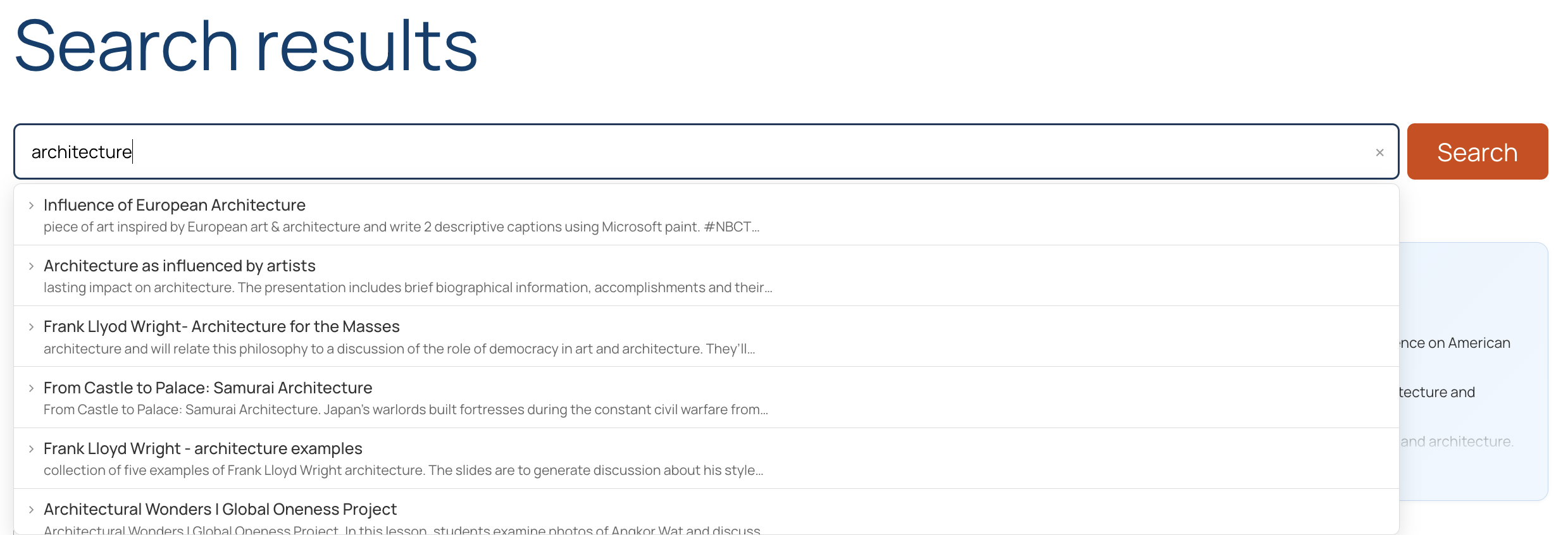
When you search SML, the new overview pulls from resources already published on the website and generates a short summary meant to help you get oriented faster; it’s especially useful when you’re searching a broad topic and don’t want to click through a dozen results just to find your bearings. It’s not choosing your lesson plan for you. It's more like a quick preview stitched together from several sources at once, sitting above the individual results you'd normally scroll through.
Better results, too
The summary is the part you’ll notice first, but the search underneath it got smarter as well, and that part works whether or not you use the overview.
- Typos don’t stop you. Search “photsynthesis,” and you’ll still find the lesson.
- Describe what you need. Can’t remember the name? Try “president with a big hat” and you’ll get resources on Abraham Lincoln.
- Type it like a sentence. Search “science for 12th grade,” and the subject and grade filters are set for you.
What it’s good for
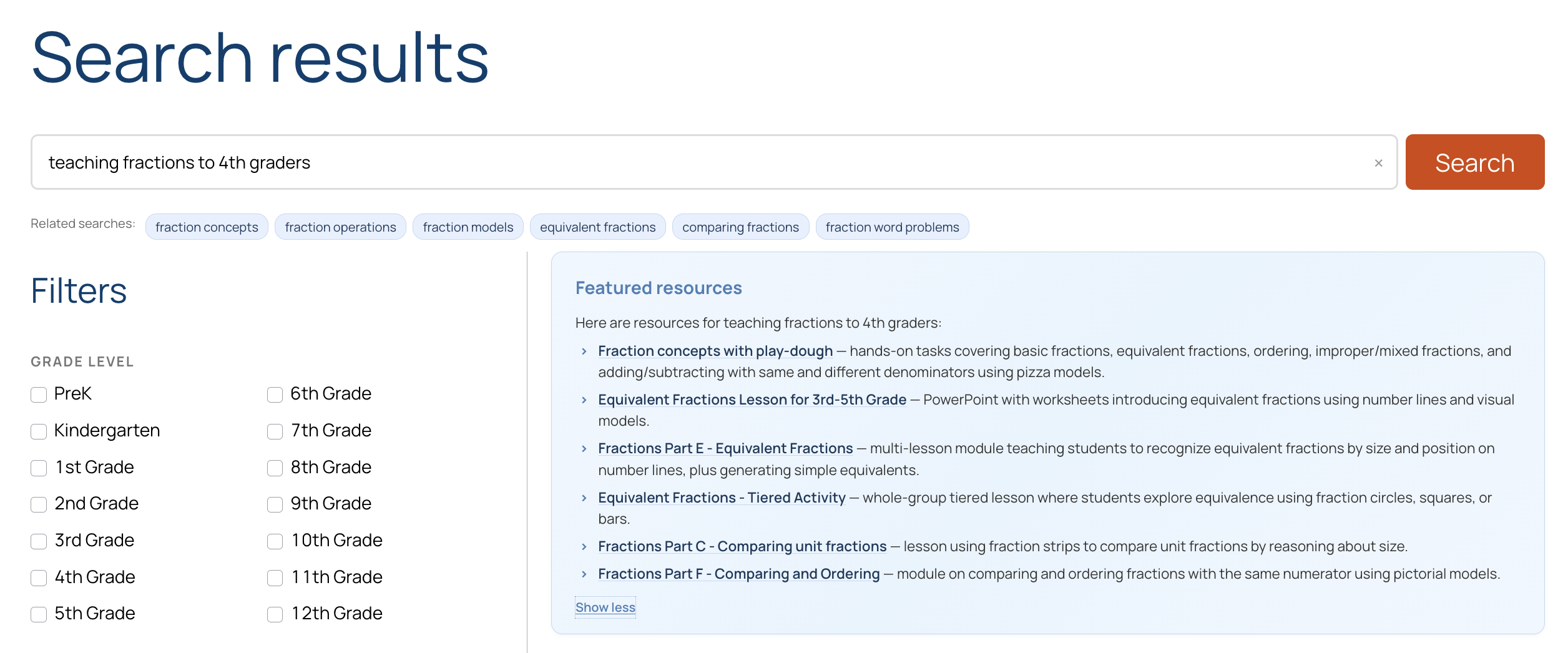
- Fast orientation. If you’re searching something broad like “teaching fractions to fourth-graders,” and want a lay of the land before diving into specific resources.
- Saving a few clicks. If you already have a rough sense of what’s out there and just want confirmation or a quick refresher.
- Surfacing resources you might have scrolled past. A good overview can point you toward something relevant that wasn’t in your first three results.
- Finding better search terms. Suggested keywords help when your first search doesn’t quite land.
What to watch for
- It can get details wrong. The overview only draws from resources on SML, so it won’t invent lessons that don’t exist. It can still misread a resource, flatten a nuanced topic or credit an idea to the wrong lesson; and it will sound just as sure when it does. Treat it as a starting point, not a citation.
- It reflects what's already there—including any gaps. If SML’s library is thin on a topic, the overview will be too, even if it sounds authoritative.
- It can blur real differences between lesson plans. Two lessons on the same topic might use very different approaches on purpose; one might fit your students better than the other. A quick summary can make them sound the same when they’re not, so you miss the differences that actually matter for your classroom.
How to use it well
- Treat it as a table of contents, not an answer. Use it to figure out where to look next instead of as the final word.
- Click through before you commit. If a summary references a resource, open the actual resource before you build a lesson around it.
- Notice when something feels off. If a summary seems to contradict something you know from experience, trust that instinct enough to double-check.
- Model this for your students. If you’re already teaching media literacy or source evaluation, this is a low-stakes, real-world example you can point to.
If you’d rather not use it
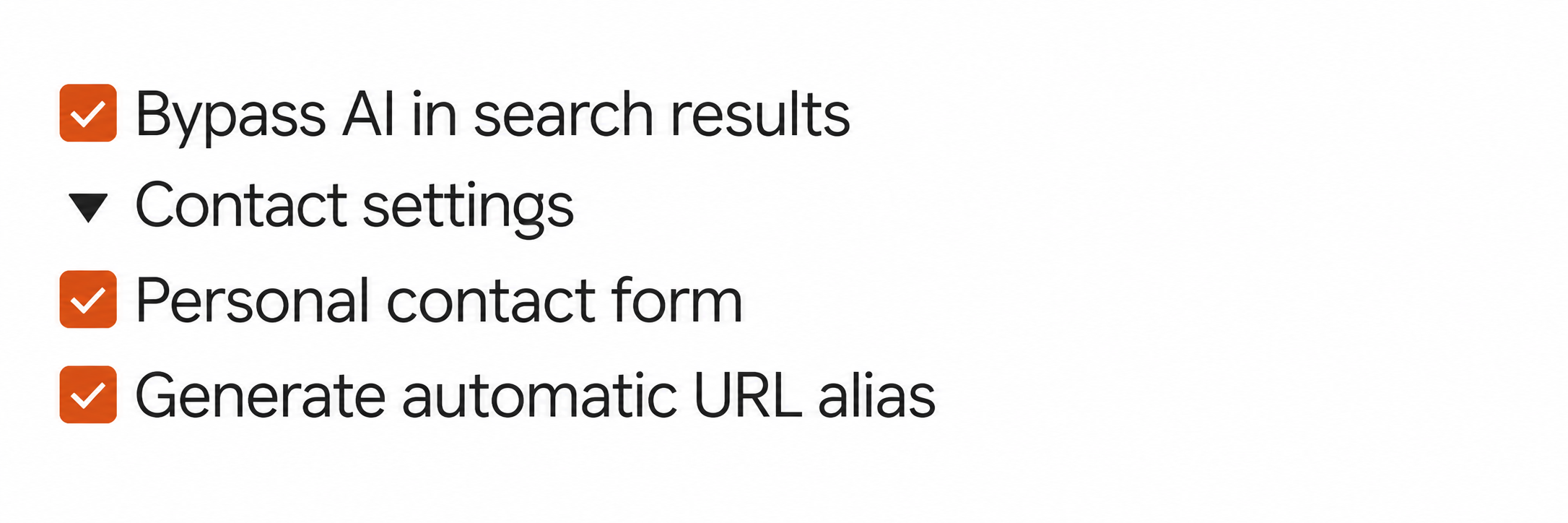
Not everyone will want the overview turned on, and that’s fine too. You can opt out any time by logging in to your account, going to Settings under your profile, scrolling down to “Bypass AI in search results,” and checking the box. Your search results will go back to showing just the resources themselves, no summary included.
What happens to your searches
To build the overview, your search terms are sent to the AI provider. Nothing else is sent: not your name, account or profile. The AI runs on SML's own account, under settings we control, and your searches aren’t used to train AI models. If you’d rather your searches never reach the AI, you can turn it off (see above).
SML's search runs on Scolta, open-source AI search built by our longtime development partner, Tag1. Because it's open source, anyone can see how it works, and SML's search index stays with SML instead of an outside search company.
Why we’re being upfront about it
The AFT and SML are investing in AI tools because we think, used well, they can save educators real time. But we also know plenty of you are skeptical—of the accuracy, the environmental cost, or what tools like this do to critical thinking over time, for you and for your students. Both reactions are reasonable, and this series isn't going to pretend otherwise. Over the next several months we’ll be digging into workload, trust and what “responsible use” actually looks like in a classroom—starting with this feature, since it’s the most immediate.
You’ll find the new AI overview at the top of your search results on SML now. If something seems off—wrong, outdated or just unhelpful—let us know at [email protected]. We’d genuinely like to hear your concerns.





Such a transparent and thoughtful breakdown of the new search features! Really appreciate Share My Lesson explaining how the AI overview works.