


Summer of Learning 2026: Tips for Using the Webinar Platform
Get ready for the Share My Lesson Summer of Learning with tips on using the webinar platform, troubleshooting tech and earning PD credit.

Share
July 21, 2026
Get ready for the Share My Lesson Summer of Learning with tips on using the webinar platform, troubleshooting tech and earning PD credit.
Share
The Share My Lesson Summer of Learning is here!To help you get the most out of your experience, we’ve put together a quick guide to help you navigate the conference platform and make sure you receive your professional development credit. Note: It’s not too late if you want to register for free:https://webinars.on24.com/aft/SummerLearning2026
Follow these technology tips to ensure a smooth webinar experience:
By checking these in advance, you’ll be all set for a seamless experience.
Closed captioning in English is now available for live viewing within the platform. Note: Captioning in English and Spanish are available automatically during the on-demand version.
If you’d like live captioning with translation in another language, you can enable it through Google Chrome by following these steps:
The top navigation bar is the most important feature to know when using the platform. It allows you to quickly move between the key areas of the webinar environment.

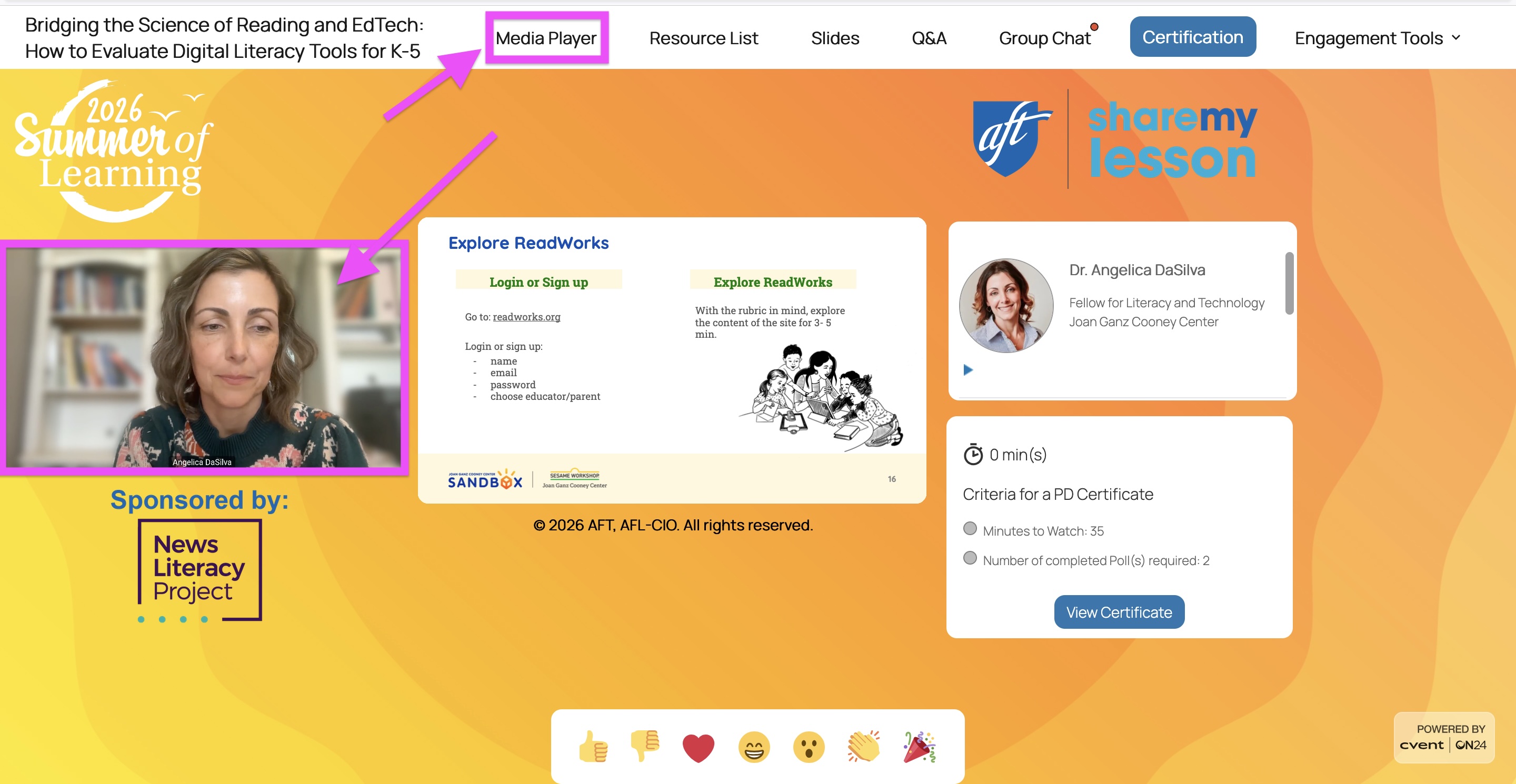
The Media Player will already be open and visible on your screen when you enter the webinar. This is where you will see the presenters speaking or any videos that are shared during the webinar.
You can minimize or maximize the media player during the presentation. However, please note that if you choose to maximize it or make it your whole screen, you will not see the presentation slides or pop-up polls that appear during the webinar.
If you accidentally close the media player, simply click Media Player in the top navigation, and it will reopen.
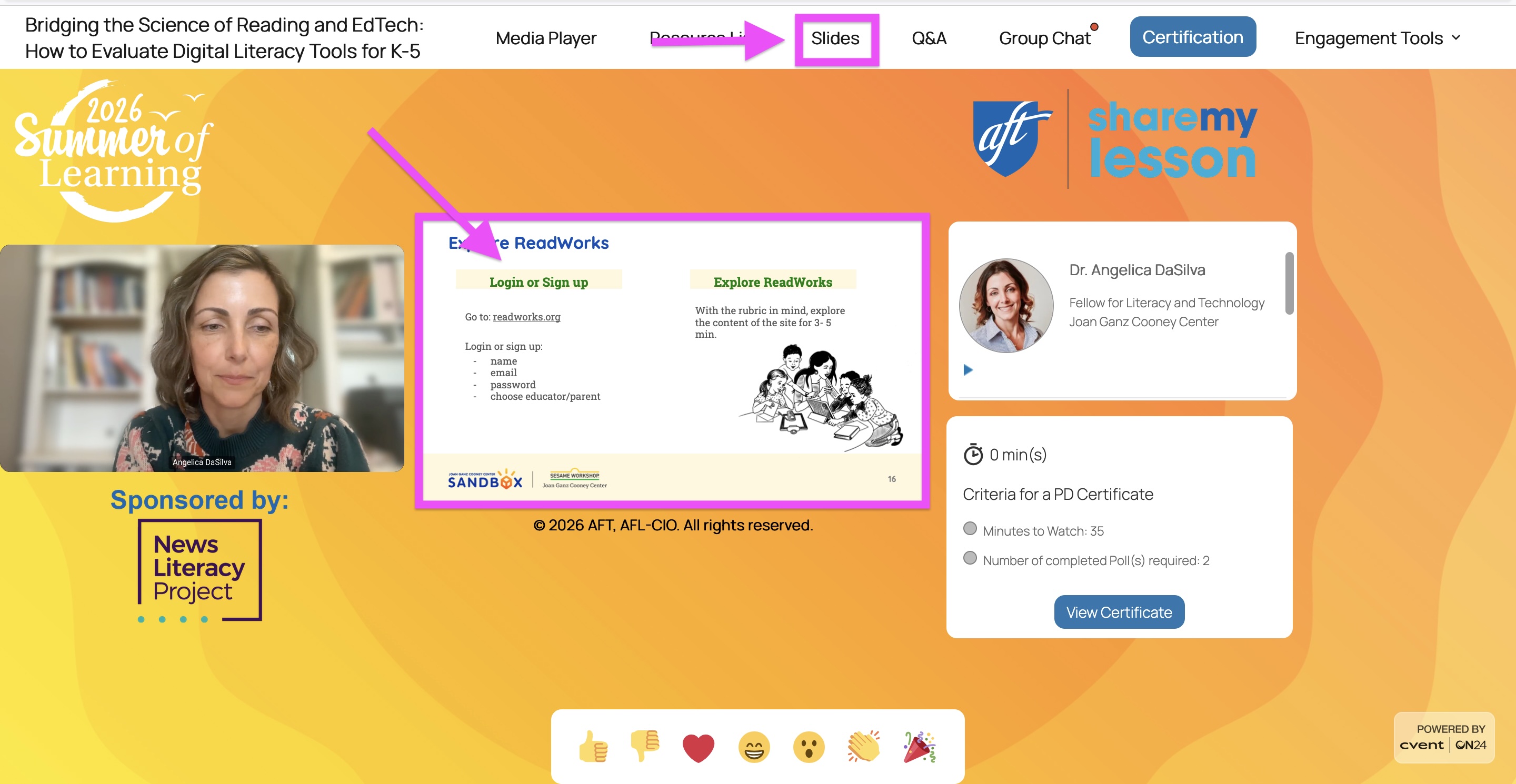
The Slides tab displays the presentation slides shared by the presenters during the webinar. These slides will already be visible when you enter the session, so you can easily follow along with the presentation.
If you accidentally close the slides window, click Slides in the top navigation to reopen it.
Many presenters share additional materials such as lesson plans, handouts or helpful links. These resources can be found in the Resource List tab in the top navigation.

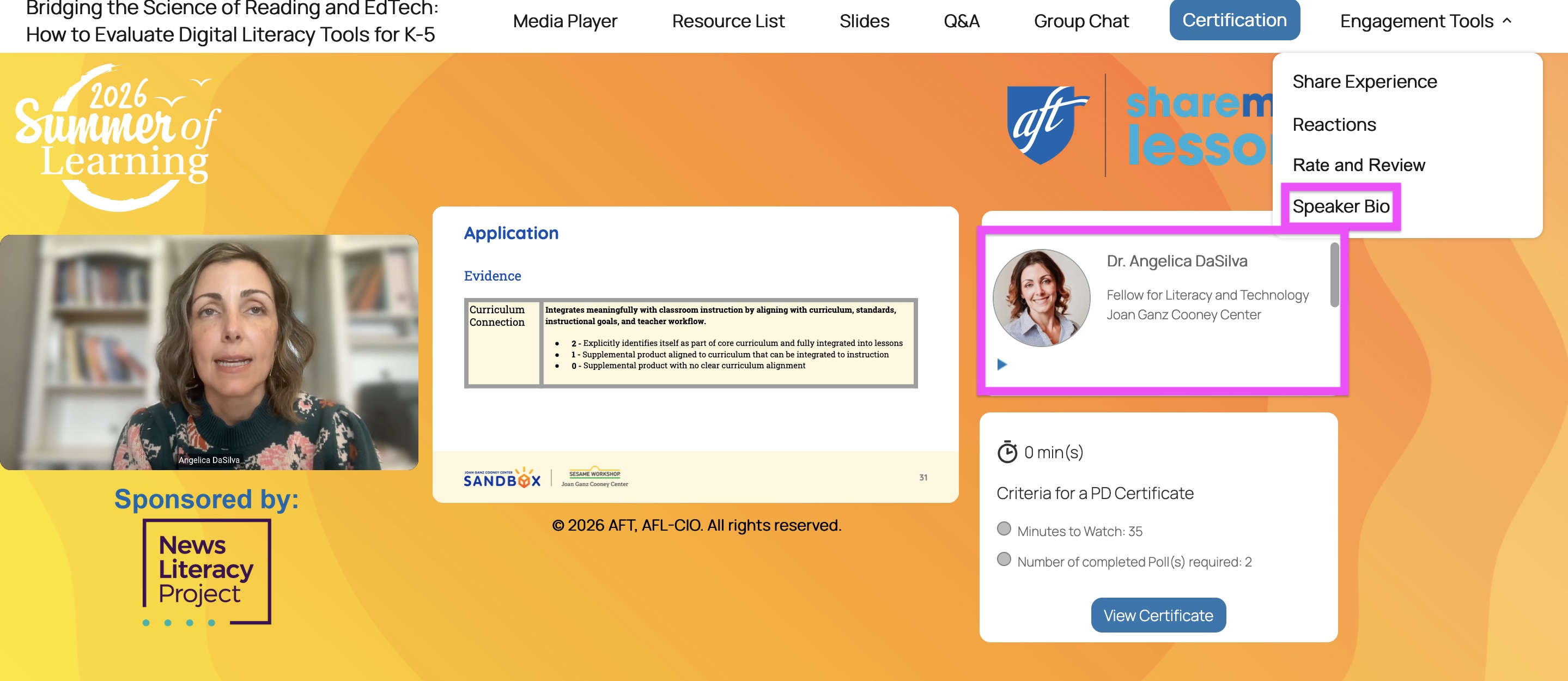
If you want to learn more about the presenters, the Speaker Bio is open on the right side of your screen for you to read. If you are not seeing it, click on Speaker Bio under Engagement Tools to open it.
If you have a question during the webinar, the Q&A tab allows you to submit questions directly to the presenters or technical support. If you’re experiencing technical issues, the support team will respond there to help you troubleshoot. Moderators may also select questions from the Q&A to be answered by the presenters during the session.

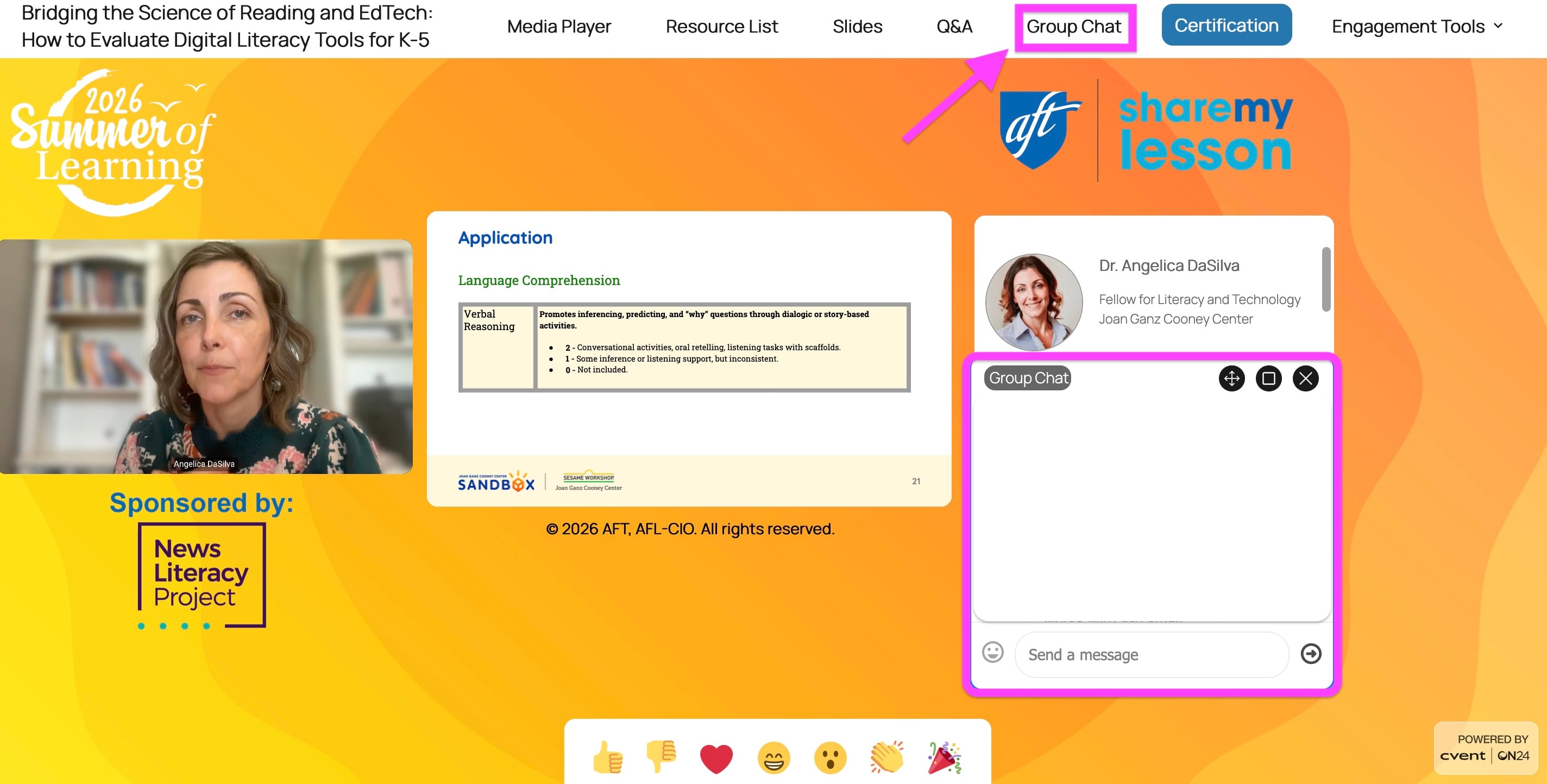
The Group Chat is a great place to connect with fellow educators attending the webinar. Click on Group Chat in the top navigation to open it, and then use the chat to share ideas, discuss strategies mentioned during the presentation and engage with the learning community. Presenters may also ask participants to respond to questions in the chat during the webinar, and they may read and respond to comments live during the session.
If you want to show the presenters some appreciation, use the emoji reactions!
Click on the emojis at the bottom of your screen and they will appear on the presenter’s screen in real time.

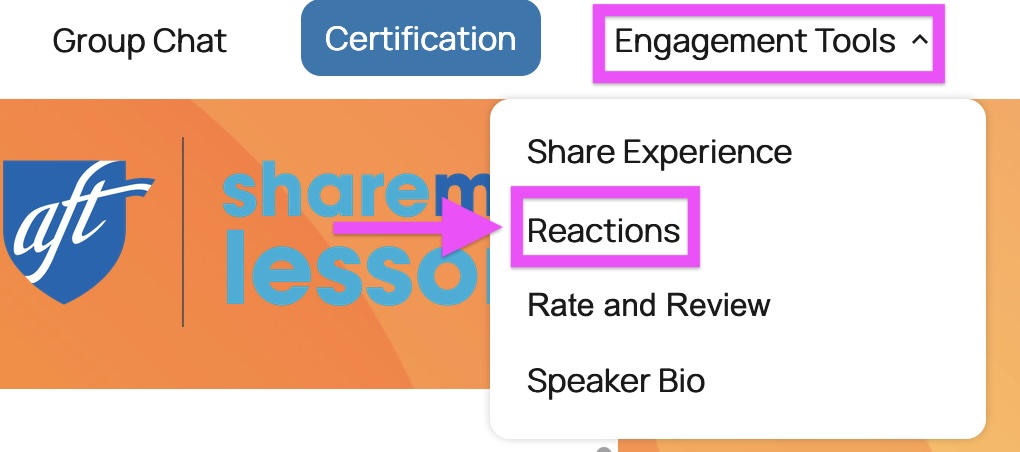
If you’re not seeing the emojis, click Engagement Tools in the top navigation and select Reactions from the dropdown menu. The emoji bar will then appear at the bottom of your screen.
To qualify for a downloadable professional development (PD) certificate, you must:
How the polls work:
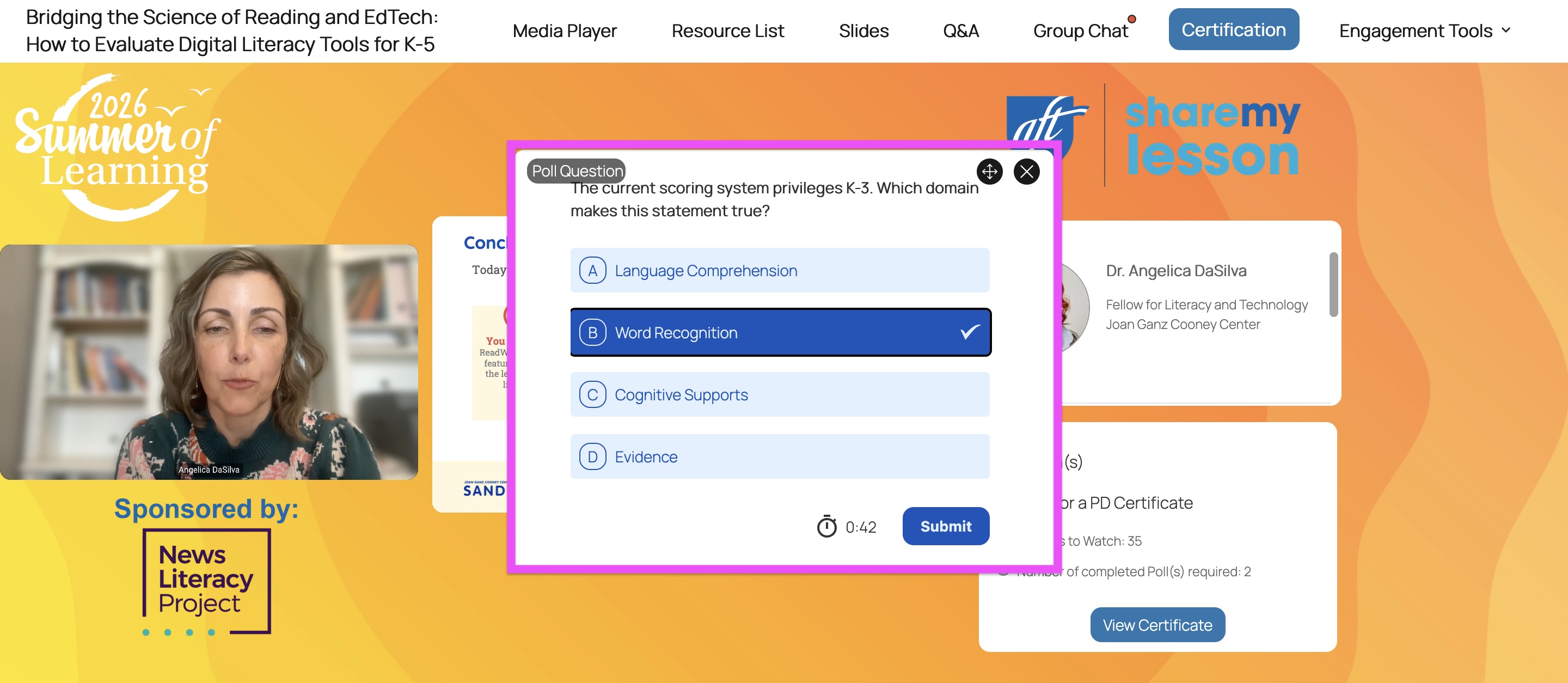
Polls will appear in a small pop-up window on your screen for 2 minutes during the session. Simply select your answer and click Submit. (See image below.)
If you have the presentation slides or media player maximized, the poll window may appear behind it. If you don't see a poll, minimize the slides or media player to access it.
If the presenter moves to the poll results before you've had a chance to respond, don't worry. Simply click the X in the top-right corner to close the results window. As long as you're still within the 2-minute polling window, the poll submission box will appear underneath, allowing you to submit your response.
Learn more about earning credit here.
You can track your progress for qualifying for a PD certificate by viewing the Certification box on the right had of your screen. After completing the webinar requirements, your certificate will be immediately available to download in this box. If you are not seeing the Certification box then click on Certification in the top navigation.
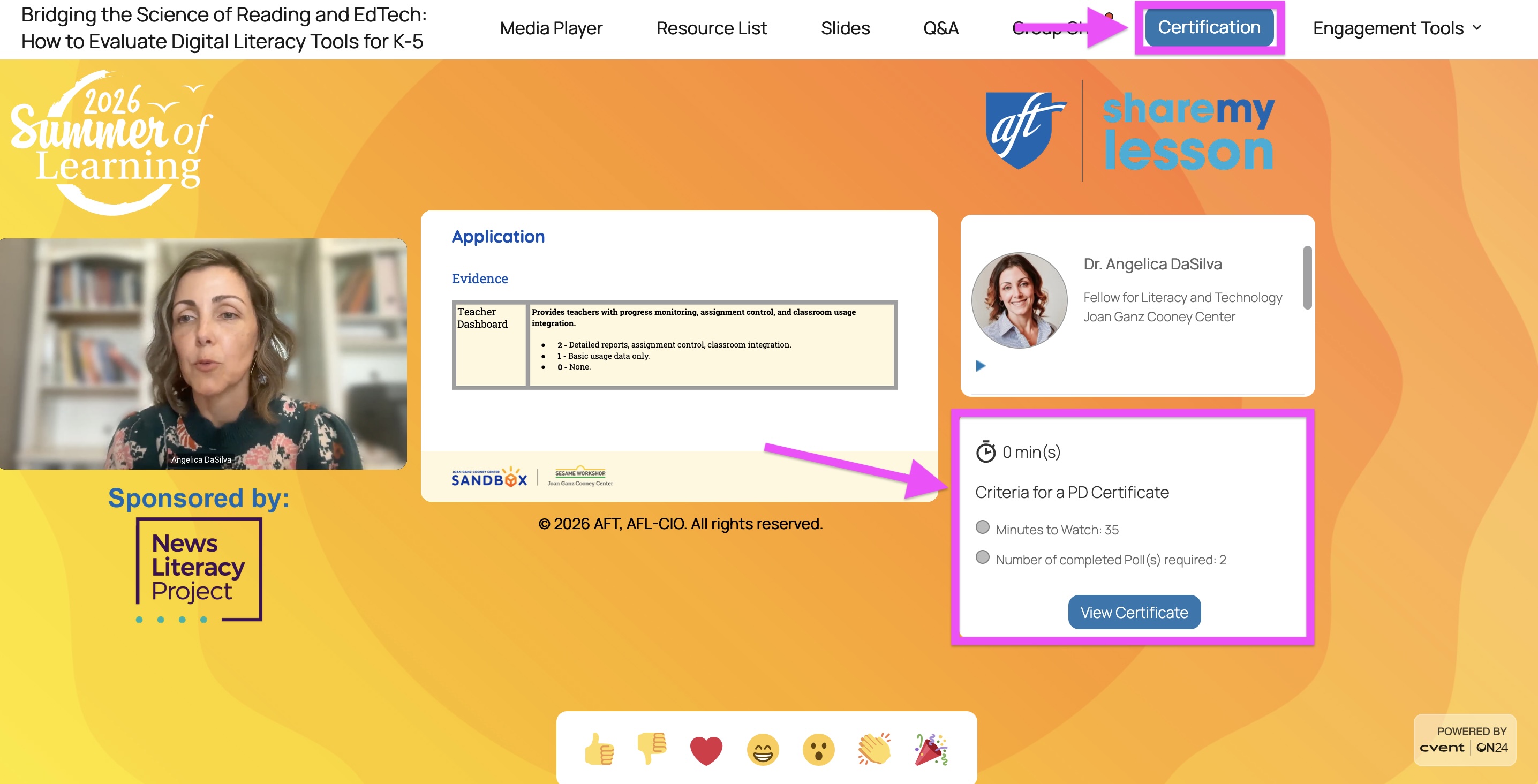
Certificates cannot be downloaded from smartphones or tablets. If you are attending the webinar via phone or tablet, then you can always log back into the on-demand webinar later using the same email and information you previously used, and your certificate will be under the Certification tab in the dropdown menu.
After the session, take a moment to rate and review the webinar. Your feedback helps the Share My Lesson team continue improving the conference experience and helps other educators decide which sessions they may want to watch on demand. It also helps your colleagues find your favorite webinars—and may even help it show up on the best of 2026 resource list!
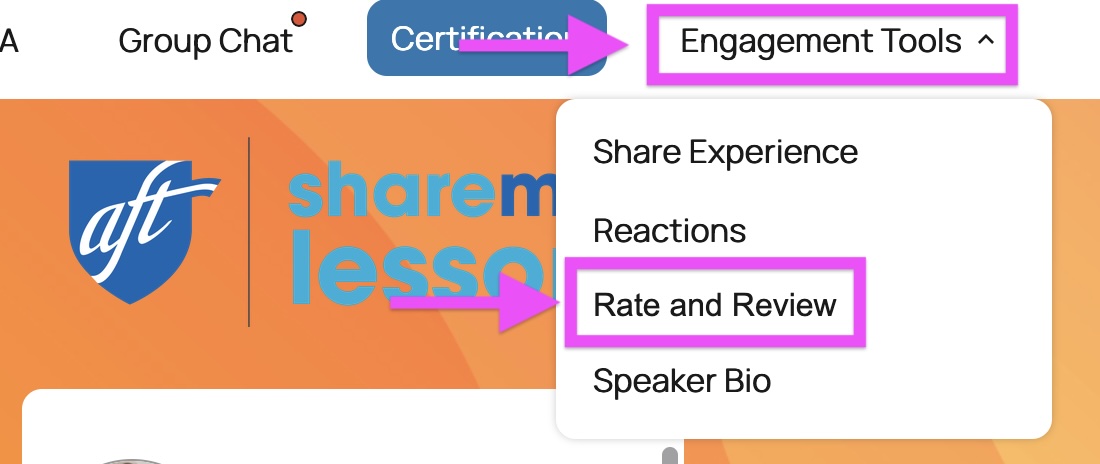
To leave a review, click Engagement Tools in the top navigation and then select Rate and Review. You will be directed to the webinar page on Share My Lesson where you can leave your review for other members to see.
Share My Lesson’s Summer of Learning brings educators together to connect, collaborate, and learn from one another. To make the most of your experience, take a few minutes to familiarize yourself with the platform and participate in polls, discussions, and reactions throughout each session.
This summer, tune into learning with Share My Lesson’s Summer of Learning collection featuring 30+ free, for-credit webinars, classroom-ready lesson plans and engaging resources for educators, parents and students.


